
Contents
This post shows you how to make your Windows PowerShell terminal both beautiful and efficient — so that talking to a dozen AI coding agents spread across several projects feels comfortable instead of chaotic. You’ll get a colorful, readable prompt, panes that label themselves so you always know which agent is working on what, and a single keystroke to zoom in on any one of them.
The tool that makes the multi-pane part possible is tmux — it splits one terminal window into many panes and keeps them all alive. I run most of my work on a Linux server inside it (here’s why), including several Claude Code agents visible at once. New to tmux? The Genius Behind TMUX is the gentle introduction. What follows is how I brought that same comfort to Windows — and the Windows-specific snags I hit along the way.
Why tmux on Windows — and why I still live in PowerShell
PowerShell is my daily Windows shell. It’s the native way to talk to the machine, and everything Windows-shaped — services, the registry, winget, my own automation — is easiest there. I’m not trying to replace it.
But the heavy work wants a multiplexer: several Claude Code sessions running at once, an SSH connection into my server, dev processes that have to survive me closing the laptop. That’s tmux’s job, and I already have years of muscle memory for it. So I run both — PowerShell for Windows-native things, and zsh inside tmux for the multiplexed work.
On Windows, tmux runs under MSYS2, a genuine POSIX environment — deliberately not WSL. I want the terminal itself to be native and fast, not a Linux VM with its own filesystem. The one rule that makes two shells painless is this: make them behave identically. Same prompt, same $HOME, the same PATH so node, git, and gh resolve the same way in both. Switching shells shouldn’t feel like switching computers.
One beautiful prompt, in every shell
The prompt is oh-my-posh running the powerlevel10k_rainbow theme — those interlocking colored segments for user, directory, git status, and time. (It’s oh-my-posh’s port of the original Powerlevel10k zsh theme.) The trick to parity is that the exact same theme initializes in both shells, so the prompt is identical whether I’m in PowerShell or zsh.
# PowerShell profile — Microsoft.PowerShell_profile.ps1
oh-my-posh init pwsh `
  --config ".../powerlevel10k_rainbow.omp.json" | Invoke-Expression
# zsh — ~/.zshrc — same theme, same look, inside tmux
eval "$(oh-my-posh init zsh --config "$_omp_config")"
Two things it depends on: a Nerd Font installed system-wide and set as the terminal font (I use JetBrains Mono Nerd Font), so the powerline arrows and git glyphs actually render — and UTF-8 being switched on for the session, which is where Windows bit me.
The gotcha: Nerd Font glyphs showed up as underscores
tmux decides UTF-8 support from the attaching client’s LANG at connect time, and that decision sticks for the whole life of the session. PowerShell never sets LANG (it’s a Windows-native shell with no POSIX concept of it), so launching tmux from a PowerShell prompt flagged the session non-UTF-8 forever — surviving reboots and new windows, because the broken state lived in the tmux session, not the terminal window. Two lines in the PowerShell profile fixed it for good:
$env:LANG   = "en_US.UTF-8"
$env:LC_ALL = "en_US.UTF-8"
Panes that title themselves
With a dozen panes open, a grid of anonymous shells is useless. So each pane shows a title in its border, fed from two sources — and tmux just captures whatever the shell emits as an OSC 2 escape sequence.
The shell tells tmux where it is
zsh sets an idle title to the current directory, and an active title to dir ❯ command while something runs, using precmd and preexec hooks:
# ~/.zshrc — idle = cwd,  active = "cwd ❯ command"
_pane_title_idle() { print -Pn "\e]2;%1~\a" }
_pane_title_cmd()  { print -Pn "\e]2;%1~ ❯ ${1[1,40]}\a" }
precmd_functions+=(_pane_title_idle)
preexec_functions+=(_pane_title_cmd)
Claude Code writes what it’s working on
Each Claude Code session runs a UserPromptSubmit hook that rewrites the pane title to a short summary of whatever I just asked. Now a wall of panes reads like a live to-do list of what every agent is doing — the same idea behind my multi-session setup, and a close cousin of the custom status line I run inside each session.
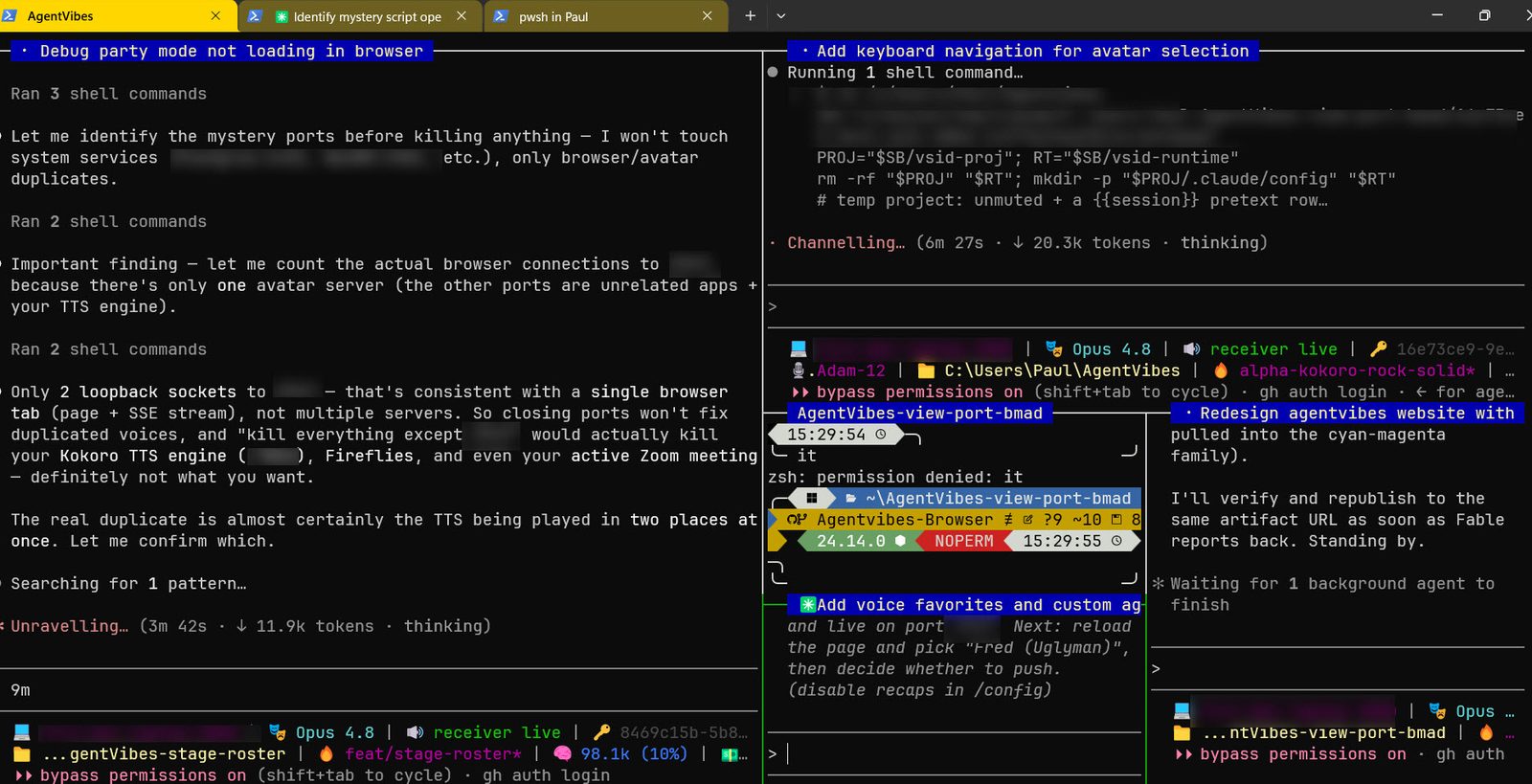
My real screen — every highlighted pane border (“Debug party mode not loading in browser”, “Add keyboard navigation for avatar selection”, “Redesign agentvibes website…”) is a live title written by that pane’s Claude Code session, over the powerlevel10k prompts at the bottom of each pane.
tmux renders those titles by turning the pane border into a label — two lines of config:
# ~/.tmux.conf
set -g pane-border-status top
set -g pane-border-format "#{?pane_title,#{pane_title},#{pane_current_command}}"
The gotcha: something kept overwriting my titles
oh-my-posh has its own console_title_template that emits an OSC-2 title on every prompt ("{{ .Shell }} in {{ .Folder }}"), and it was stomping both the zsh auto-title and Claude Code’s summary on every keystroke. The fix was a local copy of the theme with that one template disabled.
Ctrl+Shift+Z to zoom a pane
tmux can zoom a pane to fill the whole window and back — but the default is the two-step chord Ctrl-B then Z. I wanted a single keystroke. On the tmux side, that’s easy:
# ~/.tmux.conf
set -g extended-keys on
bind -n C-S-z resize-pane -Z   # Ctrl+Shift+Z, no prefix
But on Windows Terminal that alone does nothing — and this one took me a while to see. Windows Terminal grabs Ctrl+Shift+Z for its own built-in pane-zoom action, so the keystroke is swallowed by the terminal and never reaches tmux. The binding above is correct; it just never fires.
The fix is to rebind the key in Windows Terminal so it sends the tmux zoom command instead — the prefix byte Ctrl-B (written \u0002 in JSON) followed by z. Windows Terminal’s sendInput action does exactly that:
// Windows Terminal settings.json
// action: send tmux's prefix + z to the shell
{ "command": { "action": "sendInput", "input": "\u0002z" },
  "id": "User.sendInput.tmuxZoom" }

// keybinding
{ "id": "User.sendInput.tmuxZoom", "keys": "ctrl+shift+z" }
Now Ctrl+Shift+Z zooms and un-zooms the focused pane in one tap — and because it’s just replaying the built-in prefix chord, it works no matter what’s running in the pane.
What I actually learned
Every custom line here chases one goal — parity, so Windows feels like the Linux box I do most of my work on. And nearly every surprise along the way was Windows-specific, living in the seams between a POSIX multiplexer and a native Windows terminal:
- UTF-8 is decided once, at attach time. tmux reads the client’s
LANGwhen you connect and never revisits it — set it in the PowerShell profile or Nerd Font glyphs turn to underscores. - Pane titles are just OSC-2 sequences. Anything that emits them — like oh-my-posh’s title template — will fight you until you silence it.
- The terminal gets first crack at your keys. Windows Terminal eats some shortcuts before tmux ever sees them. When a binding “doesn’t work,” suspect the terminal first, then have it
sendInputthe tmux chord. - Two shells is fine — great, even — as long as the prompt,
HOME, andPATHmatch, so moving between PowerShell and tmux is invisible.
The whole setup — the dotfiles, the PowerShell profile, the Windows Terminal snippet, the Claude Code hook, and a one-shot install script — lives in a public repo: github.com/paulpreibisch/windows-tmux-setup. Clone it, run .\install.ps1, and a fresh Windows machine comes up in this exact state — no re-deriving any of it.
Drowning in repetitive business tasks?
Are you an Amazon reseller or a local entrepreneur stuck doing the same manual work every day — listings, pricing, inventory, reports, reminders, follow-ups? I build automations that handle the repetitive stuff for you, so you get your time back and your business runs a little more on its own. Let's make your life easier.
Contact me for help →
Found this useful?
If this kind of setup saves you time, a connect on LinkedIn goes further than you'd expect — I post there about automating the boring parts of running a business.
Connect on LinkedIn →Related reading
- The Genius Behind TMUX — what tmux is and the handful of commands you’ll actually use
- Are You Running More Than One Claude Code Session at Once? — the multi-agent, labeled-pane workflow this setup was built to mirror
- Why I Develop on a Remote Server — the always-on Linux box this whole thing is trying to match
- Claude Code’s Status Line — the live dashboard that rides above the prompt in every session
- Eight AI Tools Reshaping How I Work in 2026 — where Claude Code and the rest of this stack fit in the bigger picture
Comments
Loading comments…
Leave a comment